Tutorial - Loading Assets
In our previous example we only used some simple colors and the default font for our components. This won't cut for most use cases as you most probably want your own font, images, button, etc.
As UCGUI has no visual no editor to do any of those things, one naturally might come to the conlcusion that there needs to be some sort of functionality to achieve the same result. Indeed!
Text Asset Customization
Naive Loading
Before we dive into some more convenient workflows, let's start with some very simple, but naive, examples.
Suppose you want to change the font of your text. No special request; no special answer.
Changing the font is as simple as calling .Font(...) on any TextComponent!
However, how do we tell the the function where to grab our font asset from? UCGUI makes
use of TextMeshPro under the hood for all text-based elements, and thus a TMP_FontAsset
is required to change the font of your text.
As you might know, the Resources API allows for dynamic loading of such anything which is located
in the your <Project>/Assets/Resources/ folder. We can make use of it to set the font of
our text:
    UI.Text("Hello, World!")
    .Font(
        // Loads "<ProjectName>/Assets/Resources/Font/FancyFont.asset"
        Resources.Load<TMP_FontAsset>("Font/FancyFont")
    )
    .Parent(canvas);
This works, but we quickly run into an issue when trying to re-use the same font for multiple text components. We could store a reference to the asset and then apply it to all texts but this is also tedious and you need some centralized place to store the font, allowing you to access it. Also too much effort.
Advanced Loading
The TextComponent has a built in solution: GlobalFont is a static member (and method) which can be initialized
once, and then applies the font automagically to every TextComponent which is instantiated afterwards.
This removes our '.Font' calls and we never have to remember to apply it to every single text, button, label, textfield, etc.
TextComponent.GlobalFont = Resources.Load<TMP_FontAsset>("Font/FancyFont");
for (int i = 0; i < 5; i++){
    UI.Text($"Hello, {i}").OffsetY(i * -40).Parent(canvas);
}
Using this technique, all texts in the example above will have our custom font applied, whilst only requiring a loading overhead once.
UCGUI heavily recommends using the GlobalFont variant as loading from the Resources for every text instantiation is very performance heavy.
Image Asset Customization
Images are a bit more complex to get right as you probaly load way more images than fonts throughout your game.
UCGUI offers a simple way of loading images into your game. Again you can use 'Resouces.Load', but has a built-in wrapper which also does nice quality of life side-effects.
The ImageService class wraps the 'Resouces' functionality by allowing for a fallback if a certain texture or sprite
cannot be found. This often helps to quickly identify where something has gone wrong, or assets are still missing.
Defaults.Services.MissingTexture2DLocation can be set to a path relative to the Resources folder to fallback to a specific
Texture2D when an attempt at grabing an invalid asset was made; it will default to 'Assets/Resources/missing'.
Furthermore, ImageService.GetSprite and ImageService.GetSpriteDirectly() can be used to load 'Default' or 'Sprite' images
from your folder structure. Both load relative to 'Assets/Resources/Textures/'!
Let me show you what using them could look like:
// first, define a fallback image for invalid paths
ImageService.MissingTextureLocation = "Textures/missing"

// "<Project>/Assets/Resources/Textures/wallpaper" with ImageType 'Default'
UI.Image(ImageService.GetSprite("wallpaper")).Maximize().Parent(canvas);

// "<Project>/Assets/Resources/Textures/9-sliced-rectangle" with ImageType 'Sprite'
UI.Image(ImageService.GetSpriteDirectly("9-sliced-rectangle"))
    .Size(200, 100)
    .ImageType(Image.Type.Sliced)
    .PixelsPerUnitMultiplier(0.1f)
    .OffsetX(-200)
    .Parent(canvas);

// "<Project>/Assets/Resources/Textures/missing" with ImageType 'Default'
UI.Image(ImageService.GetSpriteDirectly("invalid-path")).OffsetX(50).Parent(canvas);
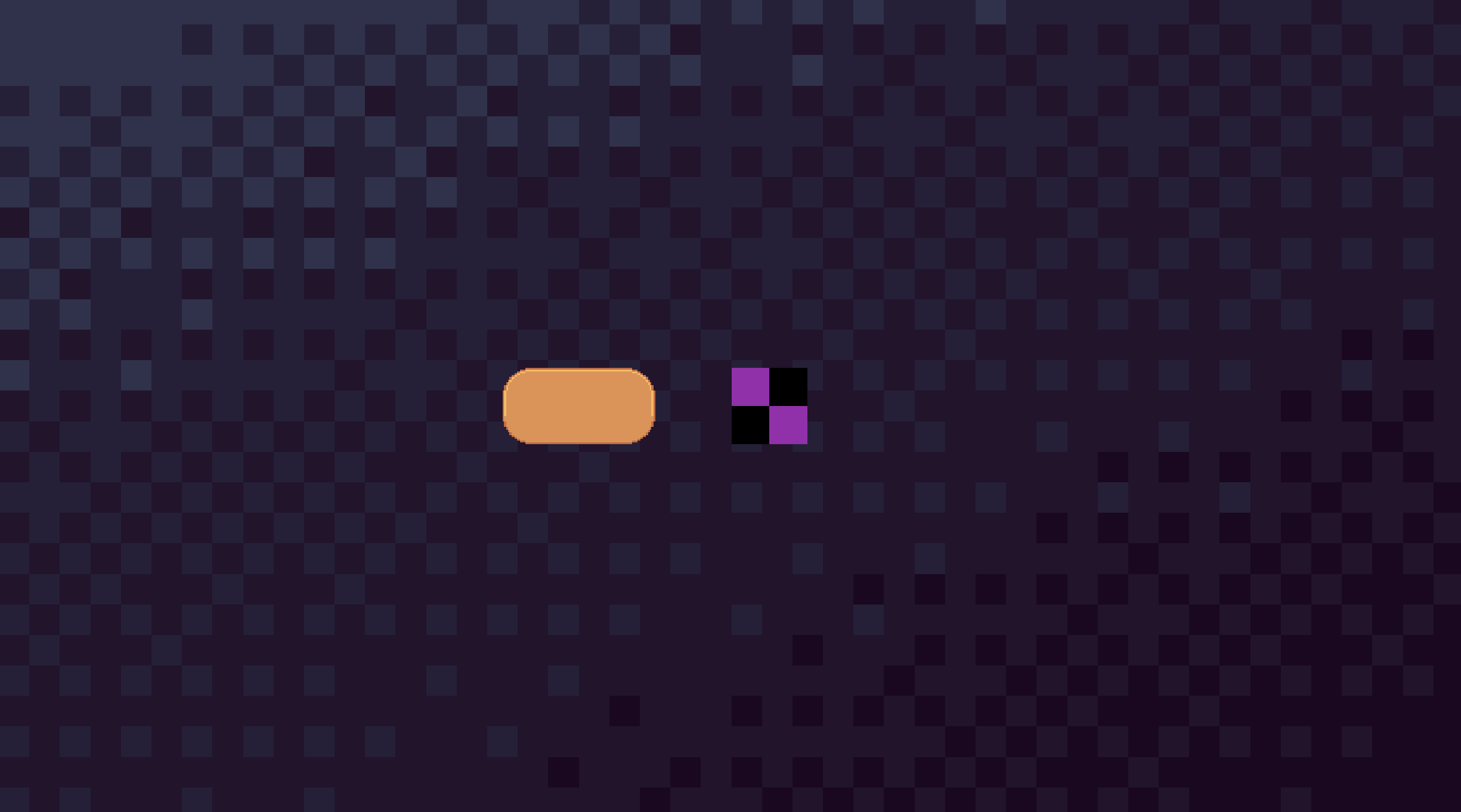
As you can see, UCGUI correctly loaded our wallpaper and the sprite for our rectangle. However, when we tried loading an invalid path to an image (either because we tried to load a Sprite but the image was marked as Default, vice versa, etc.) UCGUI displays the texture defined as your 'Missing Texture'.
For the 9-Sliced image we have to apply a slightly differnt flow to have it be properly displayed in our user interface. Most importantly we need to load it directly (as the method states), instead of indirectly so we can keep its 9-sliced configuration and options. Then, we need to tell the renderer to treat it as a sliced image and how 'strong' the slicing should be. If you are unsure of what exact value to use the the pixels per unit multiplier, try building your UI once and then tweaking the value in the editor. It can be hard to guess what exact values create your desired look, and this is where UCGUI reaches its limits in terms of a lack of visual feedback of your UI elements.
It is recommended to set your missing texture as early as possible as this helps you with debugging. If no missing texture is defined or the path to it is invalid, UCGUI will have no internal fallback and null will be passed around.
What we have learnt this section:
- Why we use a GlobalFont reference to set our fonts, and in which ways we can set it.
- How we can load different types of images.
- Why extensions such as 'ImageType' or 'PixelsPerUnitMultiplier' might be necessry when dealing with 9-sliced sprites.
- How the MissingTexture2DLocation can help us catch invalid textures.
Thats it with the tutorial for now. If you have something in mind I'd suggest to try and start prototyping it with UCGUI and see how it goes. There are also some aspects and functionalities of UCGUI which have not been mentioned in this tutorial. Take a look at the individual docs pages of all components to get a more in depth and comprehensive overview!